Pixel size and file capacity are different
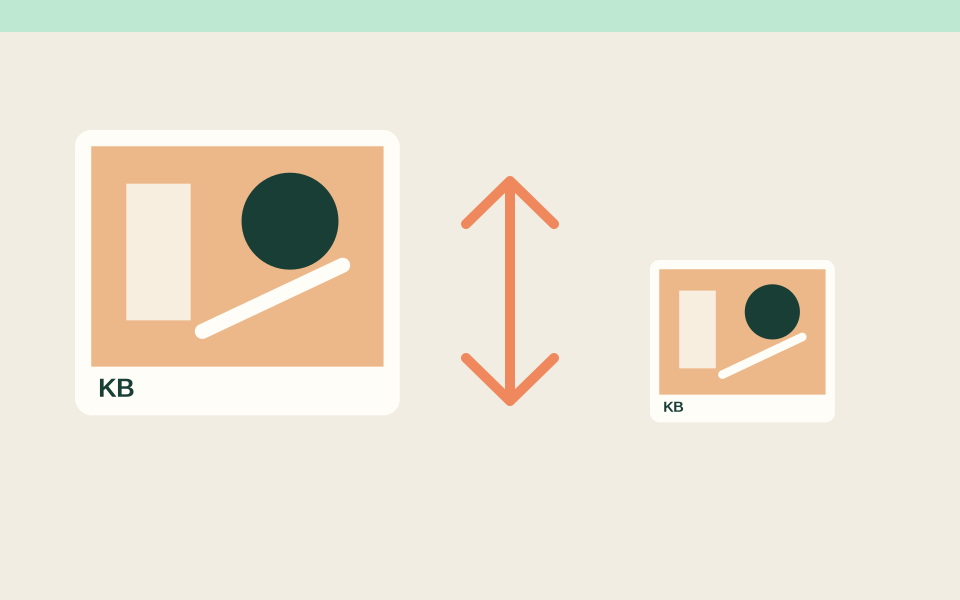
Width and height describe the image dimensions; KB and MB describe the amount of stored data. Resizing a 2000×1000 image to a width of 1000 while preserving its proportions produces 1000×500 pixels. That reduces the pixel count from 2 million to 500,000, but does not necessarily reduce the file size to one quarter.
File format, compression settings, colors and fine detail also affect file size. If an image has more pixels than you need for its display size, try reducing its output width first. Enlarging it adds pixels without recovering detail missing from the original.
Comparison of WebP·PNG·JPEG
| Format | Compression method | Transparency |
|---|---|---|
| PNG | Lossless | Support |
| JPEG | Typical web photo storage has lossy compression | Not supported |
| WebP | Loss/No Loss | Support |
References: PNG specification (Third Edition)
References: Google WebP Guide
Check which image formats the receiving service accepts. Moyoutil can save PNG, JPEG and WebP, but cannot change another site or app’s upload requirements.
Moyoutil uses the browser’s Canvas encoder for WebP output. WebP supports lossless compression, but this tool does not offer a switch for selecting lossless WebP.
Three steps to reduce capacity
- Keep your original and choose an output width based on where the image will appear.
- If you need transparency, compare PNG and WebP. This tool fills transparent areas with white when saving JPEG.
- For JPEG and WebP, try different quality settings. Compare the downloaded file sizes and check small text and edges.
The initial quality setting is 85. It is a parameter passed to the encoder, not a guarantee that 85% of the original image quality is retained. Compare a file saved at a lower quality setting with the original to see whether it is suitable for your purpose. No single quality value is best for every image.
The quality setting is ignored for PNG. To reduce PNG size, try a smaller output width. Alternatively, compare WebP output while checking transparency and sharpness.
References: HTML Standard: Canvas serialization
Criteria for comparing conversion results
| Check items | How to check |
|---|---|
| Capacity | Check the actual bytes and KB of the downloaded file |
| Sharpness | Compare small letters, borders, and repeating patterns to the original |
| Transparency | Check boundaries on light and dark backgrounds |
| Output size | Ensure width and height are sufficient for posting position |
Saving as PNG cannot restore detail already lost. Converting a compressed JPEG to PNG avoids an additional lossy encoding step, but does not recover information lost in the JPEG. Start from the original each time you compare dimensions or formats.
Scope of support for Moyoutil image converter
Input accepts PNG, JPEG and WebP up to 20 MiB (20,971,520 bytes) and 25 million pixels. Output width must be an integer from 1 to 8192 px. Height is calculated from the original proportions and rounded. Height must also be 1–8192 px, and the total must not exceed 25 million pixels, so a tall image can fail even when its width is allowed. JPEG and WebP quality ranges from 10 to 100; it does not apply to PNG.
Because this is a method of creating a new image in Canvas, preservation of original metadata such as EXIF is not guaranteed. It also does not provide the ability to preserve animations. Photos are processed in the browser and conversion files are downloaded separately.
Frequently Asked Questions
Will converting to WebP always make the file smaller?
No. File size depends on the original format and compression, image content, output dimensions and quality setting. Compare the actual output files.
Can I specify a target size, such as 100KB or less?
The image resize and file-size tool is a converter with manual width and quality settings; it does not automatically meet a byte target. To set a target in KB, use the separate photo compression tool. Even when the file meets that target, check the receiving service’s pixel and format requirements.