How to use the free image background removal tool
- Open the Image Background Removal tool below and select a PNG, JPEG, or WebP photo.
- Select Fine Mode on PC, or Fast Mode to reduce download volume.
- Press Remove Background. When you run it for the first time, download the necessary AI model and executable file.
- Compare the results with the original and adjust the values to clean up the residual background and inward the edges.
- Click Download Transparent PNG to save the file with the current corrections applied.
Selecting a photo does not start the large model download. Once you start processing, the waiting time depends on your device and network.
Difference between precise mode and fast mode
| Item | Precision Mode | Quick Mode |
|---|---|---|
| Usage model | U²-Net | U2NetP |
| Total of first received files | About 188MB | About 16MB |
| Selection criteria | PC and stable network | If you want to reduce the amount of downloads |
The above capacity is an approximation based on the model and executable file provided by Moyoutil. If your browser cache remains, you can reuse it, but you can get it again after clearing the cache or updating the executable. Precise mode also doesn't guarantee better results in every photo.
U²-Net is a model for finding salient objects. The purpose is different from manual editors, which precisely edit complex objects according to human-desired boundaries.
References: U²-Net paper
How to reduce residual background and white borders
Moyoutil's residual background cleanup is a correction that reduces weak residual mask values. The default is 18; increasing the value may eliminate pale backgrounds, but may also reduce hairs or thin structures. Change it little by little and compare it to the original.
The Edge Inward setting causes the mask boundary to shrink inward. The default value is 1px and can be adjusted within the range of 0~3px. This is a setting to check when the background color remains on the border, but setting it larger is not always advantageous as the outline of the object will also become smaller.
| Visible Problem | Adjustments to try first |
|---|---|
| Faint background remains | Slightly increase residual background cleanup and check for subject loss. |
| Hair and thin parts disappear | Cleaning up residual background and lowering inward values |
| Want to compare results before correction | Select view without correction |
| Large parts of the subject are incorrectly separated | Don't expect correction alone to solve the problem; look into other photos or editing methods. |
Each adjustment is recomputed from the original inference mask. Corrections do not continue to accumulate just because you move the slider multiple times. Some errors may remain in photos with complex boundaries, such as clear glass, translucent objects, or fine hair.
Transparent background example and saved file confirmation
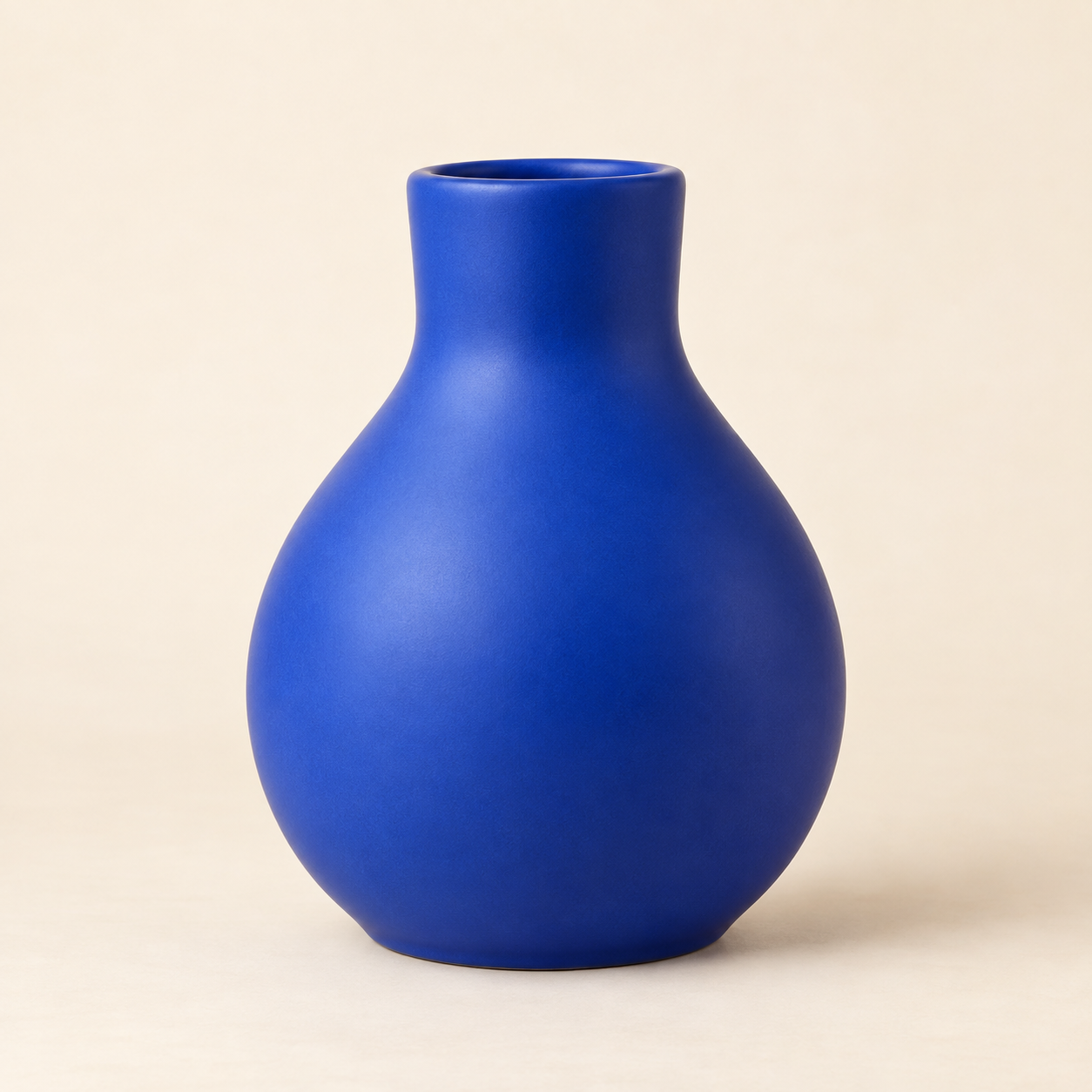
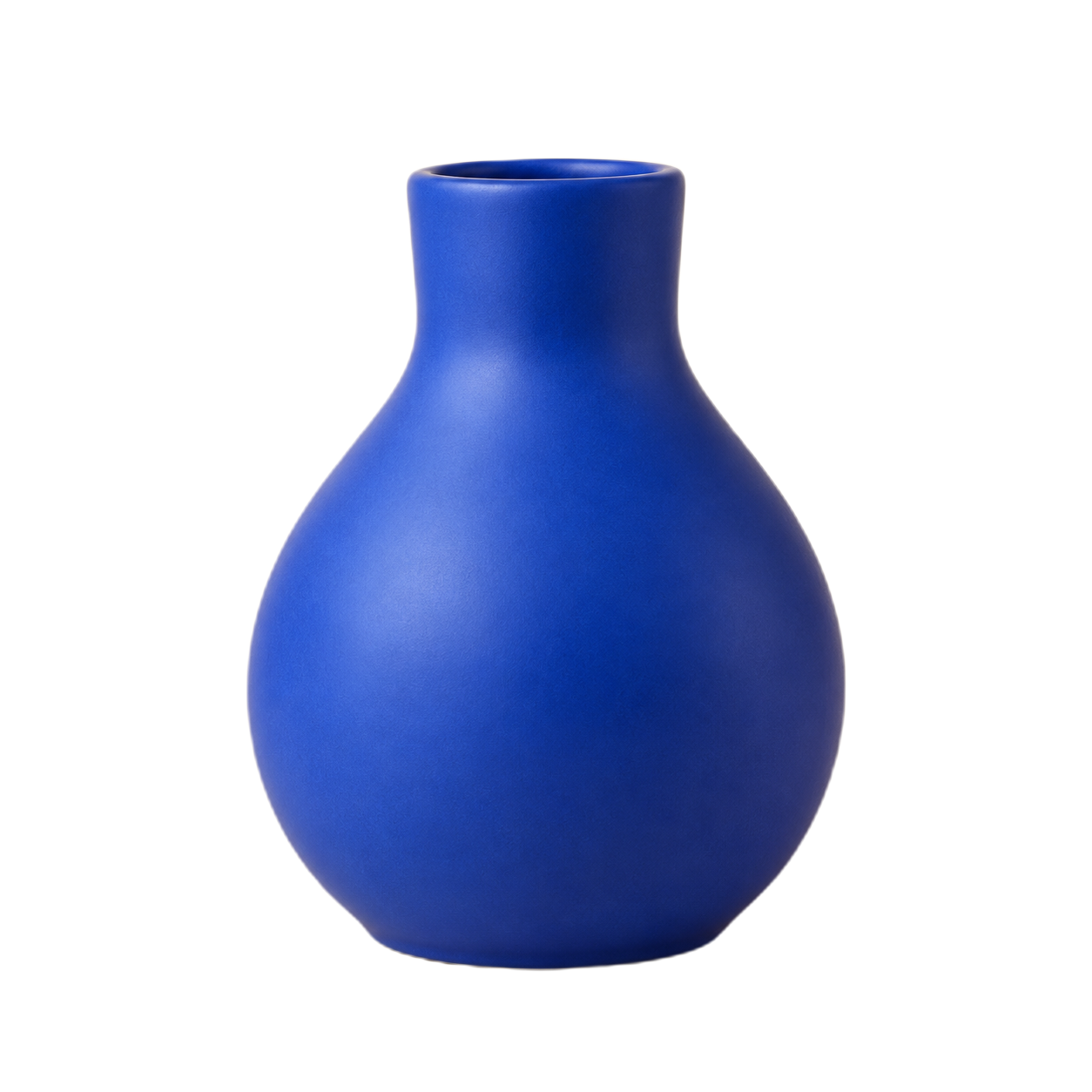
The original is an example photo created with AI, and the right is the actual result of Moyoutil precise mode. The correction value is 18 residual background cleanup, 1px inward. The results from this simple example cannot be generalized to the performance of all photos.
The checkered pattern is the screen background to show transparent areas and is not included in the PNG file. Place the saved file on top of another background to check the actual transparency and remaining borders. Transparency cannot be maintained when converted to JPEG after background removal.
Input limits and photo processing locations
Moyoutil accepts PNG, JPEG and WebP images up to 15MB and 16 million pixels. Output is limited to 2,048px on the longest side, and the original file is not overwritten. Photos and masks are processed in your browser and are not uploaded to the tool server.
Model downloads and web page requests use the network. Just because you're not uploading photos doesn't mean you're not using the network connection itself. If your device is low on memory or the process takes a long time, try again in fast mode or with smaller photos.
Frequently Asked Questions
Can I save a photo with the background removed in a larger original resolution?
The current tool's output limit is 2,048px on the long side. If you need larger output, you'll need to use an editing tool that supports that resolution.
Does the capacity also decrease after removing the background?
It does not necessarily decrease. Converting an original JPEG to a transparent PNG may increase the file size. After checking the results, adjust the size or storage format separately.