What do lossy compression and quality numbers mean?
JPEG and lossy WebP are not storage methods that leave all information in the original intact. The quality argument in the browser Canvas is a setting you pass to the encoder, not a common quality score across formats. Selecting quality 100 does not mean preserving the original files or metadata.
Although the WebP format itself supports both lossy and lossless, the Moyoutil target capacity tool does not have a WebP lossless mode selection function. It also doesn't provide the ability to hit target sizes in the same way with the PNG quality slider.
Conditions to keep when comparing the same image
- Start from the same source. If you successively recompress already compressed results, the cumulative loss will be mixed into the comparison.
- Set the output pixel size to be the same and then compare only the quality and format.
- Record file size in bytes and zoom in to see small text, high-contrast borders, and gradients.
- Since the JPEG result of a transparent image has a white background, check whether it has the same purpose as WebP that maintains transparency.
Compression results from a single solid-color shape or screen capture cannot be generalized to all photos. The example below is limited to input for verification purposes and does not guarantee a specific compression ratio.
Verification example and settings selection
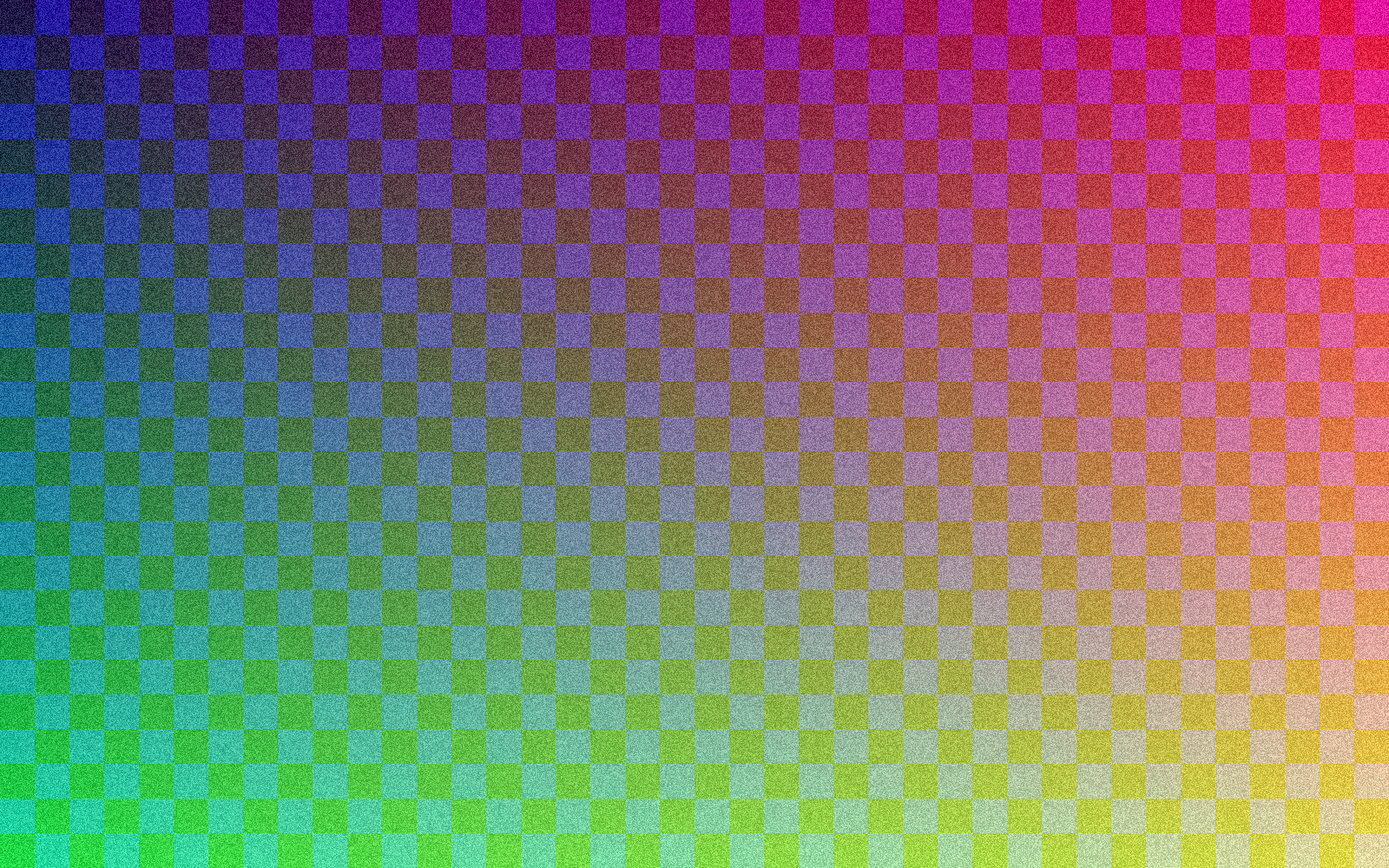
Sep 30, 2026 Handled handcrafted 1600×1000px PNGs in Chromium-based browsers. The original contains gradient, grid, and fixed random number patterns and is 4,539,528 bytes. This is a composite image for verification purposes, not an actual photo, so it should not be used as an expected compression rate for regular photos. We set the target sufficiently high to 10,000 KB and fixed the starting and minimum qualities to the same values to compare without pixel reduction.
| Format | Quality Settings | Output bytes |
|---|---|---|
| JPEG | 85 | 639,417 |
| JPEG | 50 | 261,320 |
| WebP | 85 | 639,354 |
| WebP | 50 | 377,946 |
For this input, a JPEG of quality 50 was smaller than a WebP of the same number. This does not mean that the picture quality is the same, nor is it an experiment that shows the universal superiority or inferiority of the format. Numbers may vary depending on browser and encoder versions.
I ran it separately with JPEG, target 200KB, starting quality 85, minimum quality 50, maximum long side 2048px, allowing for further reduction. The result was 1280×800px, quality 70, and 185,666 bytes. This is an example of a case where the goal of this setting could not be reached by just lowering the quality from the original size, so the pixel size was also reduced.
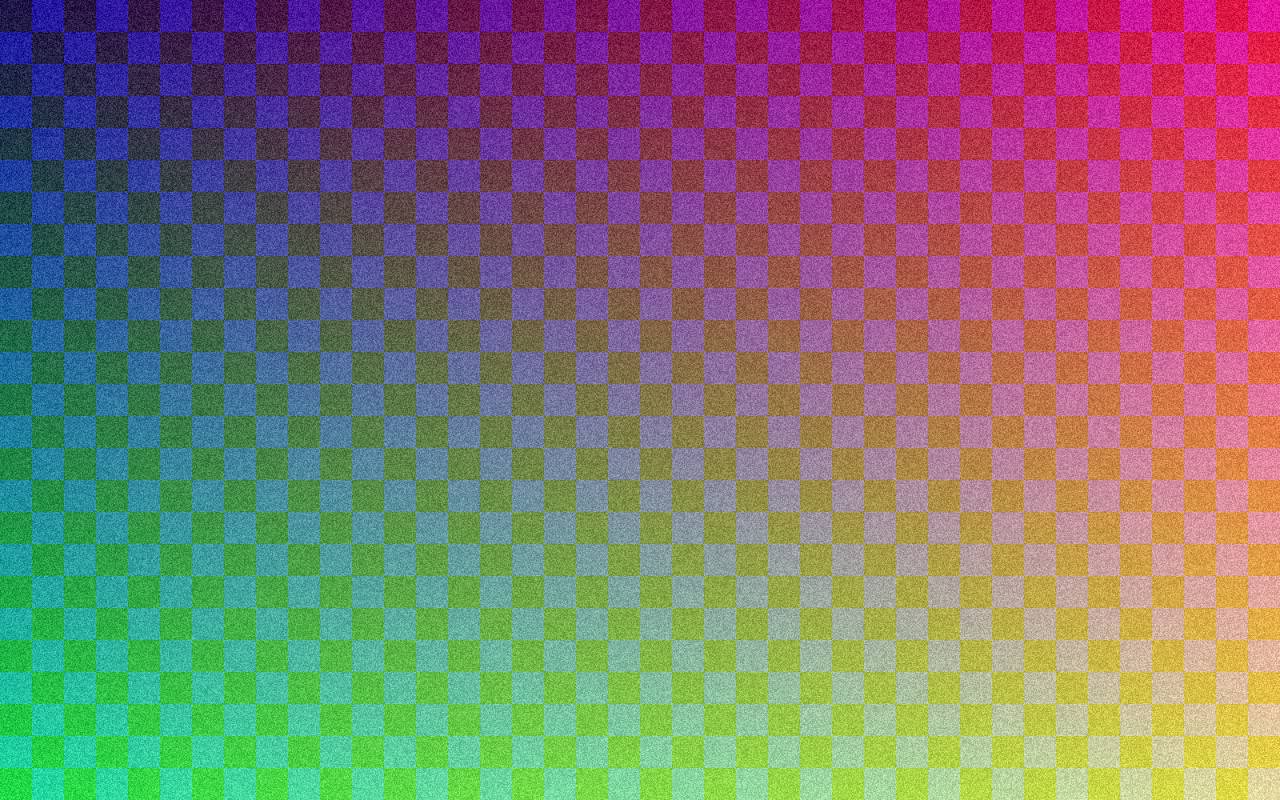
Download the original PNG for verification (approximately 4.54MB) · Download 200KB target result JPEG
Choose settings to suit your purpose
If the purpose is to display the photo small on the screen, first reduce it to the required pixel size and compare quality starting from 85. For documents and diagrams that require reading small text, it is best to maintain sufficient pixel size and a high minimum quality. If you require lossless preservation, keep the original PNG and review the PNG output from the Change Image Extension tool separately.
Even if the target capacity is achieved, the file may be larger than the original. Re-encoding small PNGs to JPEG or WebP does not always mean saving space. Please use it after comparing the number of original and result bytes on the screen.
Frequently Asked Questions
Is WebP always smaller than JPEG?
No. It depends on image content and quality and encoder settings. Compare actual results at the same pixel size.
Will increasing the quality restore already blurred photos?
No. Increasing the save quality does not restore details that are not in the original. If possible, work from the original before compression.